ControlNet for Stable Diffusion: what it is and how to install it

Table of Contents
ControlNet is an add-on for Stable Diffusion that lets you control an image’s structure: a person’s pose, object contours, scene depth, and composition. You provide the neural network with not only a text description but also an image-based “hint”: a sketch, a photo with the desired pose, or a depth map. Stable Diffusion generates the image from the description while preserving the shape from the hint.
How is this different from regular img2img? img2img uses the entire source image as a base, including its colors and details, so the result often ends up too similar to the original or, conversely, loses its shape. ControlNet uses only the part you need, such as the pose or contours, while you change everything else with the prompt.
What ControlNet can do
Each mode works with its own type of “hint” (preprocessor):
| Mode | What It Extracts from the Image | What It Is Used For |
|---|---|---|
| Canny | Contours | Preserve object shapes and redraw them in a different style |
| Depth | A depth map | Preserve the composition and distances between objects |
| OpenPose | A person’s pose and skeleton | Put a character into the desired pose |
| Scribble / Lineart | A sketch or linework | Turn a hand-drawn image into a picture |
| MLSD | Straight lines | Interiors and architecture |
| Segmentation | Color-coded object labels | Define what appears where in the image |
| Normal map | Surface relief | Preserve volume |
| IP-Adapter | The style or face from a reference image | Draw “in the same style” or with a similar character (technically, this is not ControlNet, but it is selected in the same section) |
Do you need to install ControlNet?
It depends on the interface you use to run Stable Diffusion:
- WebUI Forge and its Forge Neo branch (including installations made through Stability Matrix): ControlNet and IP-Adapter are already built in, so you do not need to install an extension or a separate package. You only need to download the models (see below). In Stability Matrix, you do not need to look for ControlNet in the package installation section: it is part of the Forge interface. The section is called “ControlNet Integrated”. It is located on the txt2img and img2img tabs, on the Generation tab, below the “Hires. fix”, “Refiner”, and “LoRA Replacements” settings (in Forge Neo, “Sparse Attention Integrated” comes next), and is collapsed by default: click its title to expand it. Inside, there are three tabs, “ControlNet Unit 1–3”; you can connect a separate hint image in each one. The img2img tab does not enable ControlNet by itself: it is available in every interface.
- AUTOMATIC1111: you need to install the
sd-webui-controlnetextension (see the instructions below). The extension works, but it was last updated in August 2024, while Forge continues to evolve (the repository was last updated in July 2025). If you are just getting started, it is better to install Forge through Stability Matrix: step-by-step instructions. - ComfyUI: ControlNet is connected through nodes (loading a ControlNet model and applying it to the request), so no extensions need to be installed. The models are the same.
Which ControlNet models to choose
The main rule is that the ControlNet model must match the base model you use for generation. ControlNet for SD 1.5 does not work with SDXL, and vice versa.
| Base Model | Which ControlNet Models to Use |
|---|---|
| SD 1.5 | ControlNet 1.1 by the method’s creator: canny, depth, openpose, scribble, lineart, softedge, mlsd, normal, seg, tile, inpaint, and others. Each model is a separate .pth or .safetensors file |
| SDXL | Xinsir Union — one model for several modes; separate models, such as Canny for SDXL; and Control-LoRA from Stability AI, a lightweight option |
| SD 3.5 | Blur, Canny, and Depth from Stability AI, for SD 3.5 Large only |
| Flux | FLUX.1 Canny and FLUX.1 Depth from Black Forest Labs, as well as community Union models, such as Shakker Labs Union Pro 2.0 |
For a beginner, one model for SDXL (Union) or several models for SD 1.5 (canny, openpose, depth) is enough. Models for SDXL, SD 3.5, and Flux are larger and require more VRAM (PC requirements). Support for new model types depends on the interface version, so before downloading, check your Forge or ComfyUI page to make sure the type is supported.
How to install ControlNet models
- Download the model file from Hugging Face (
.safetensorsis preferable to.pth: it is safer and takes up less space). - Place it in the ControlNet models folder.
- Stability Matrix: open Model Browser, select the ControlNet type, find the model on Civitai or Hugging Face, and click “Download”. The file will be placed in the shared models folder. For more information, see the article about models.
- Forge: the
models\ControlNetfolder in the interface directory. - AUTOMATIC1111: the
stable-diffusion-webui\extensions\sd-webui-controlnet\modelsfolder.
- Refresh the model list using the circular-arrow button next to the list in the ControlNet section, or restart the interface.
Installing the ControlNet extension in AUTOMATIC1111
This section is needed only if you are using AUTOMATIC1111 without Forge:
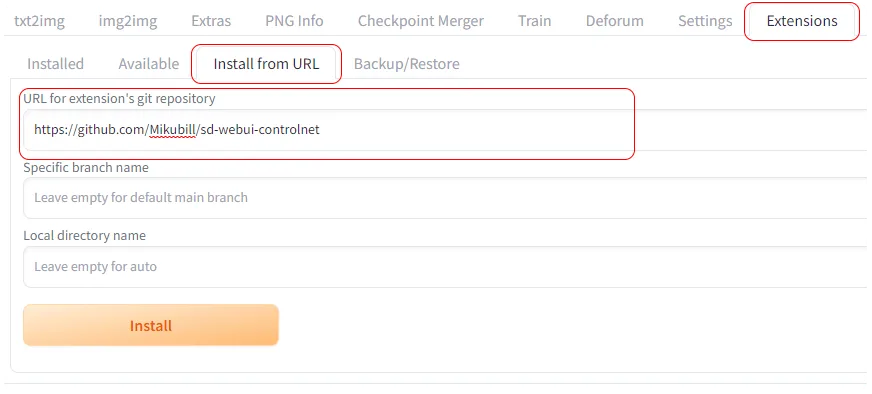
- Open the “Extensions” tab.
- Click “Install from URL” and paste the address https://github.com/Mikubill/sd-webui-controlnet.
- Click “Install”.
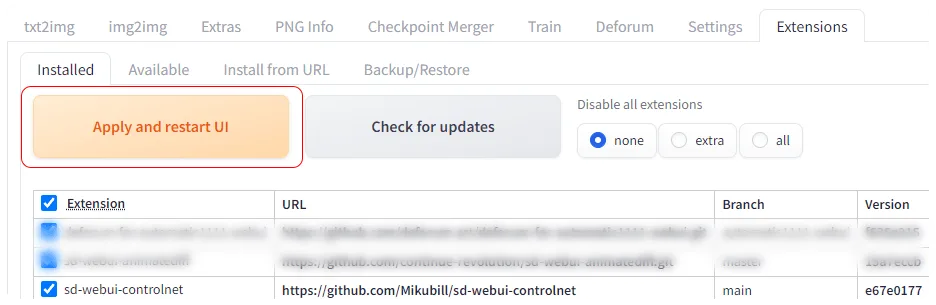
- After installation, click “Apply and restart UI” or restart the program.
After restarting, the ControlNet panel will appear on the txt2img and img2img tabs at the bottom of the workspace. 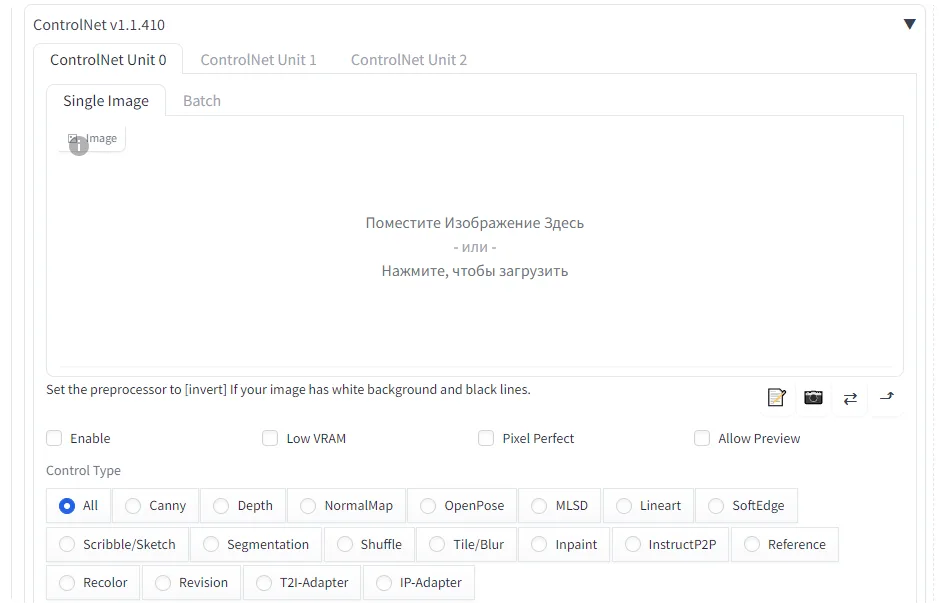
How to use ControlNet
- Open txt2img or img2img and expand the “ControlNet Integrated” section (in AUTOMATIC1111, it is called “ControlNet”).
- Upload a hint image: a photo with the desired pose, a sketch, or a diagram.
- Check “Enable”.
- Select a mode (Control Type), such as Canny or OpenPose: the preprocessor and model will be selected automatically.
- Write a prompt and click “Generate”.
Each preprocessor works only with a compatible model. For example, the openpose preprocessor is matched with the openpose model; the same applies to depth, canny, scribble, mlsd, normal map, and segmentation. If you select a mode through Control Type, the pairs are filled in automatically; when selecting them manually, verify the match. 
To start, set the weight (Control Weight) to around 1: the higher it is, the more strictly the result follows the hint. If the image looks “constrained”, lower the weight to 0.6–0.8.
IP-Adapter: a reference instead of a description
IP-Adapter lets you specify a style or face using an existing image instead of words: you upload a reference, and Stable Diffusion generates a new image in a similar style or with a similar character. In Forge, it is available in the same section as ControlNet (the IP-Adapter type); in AUTOMATIC1111, it becomes available after installing the extension. Get IP-Adapter models from the h94/IP-Adapter repository: SD 1.5 and SDXL require different versions, while the image encoder model (CLIP Vision) is reportedly downloaded automatically by Forge on first use. IP-Adapter works well together with ControlNet: one defines the style, while the other defines the pose.
Errors and solutions
- The model is not in the list. Make sure the file is in the correct folder and click the refresh button next to the list. Then restart the interface.
- The image does not change or an error appears. Check that the ControlNet model matches the base model (SD 1.5 with SD 1.5, SDXL with SDXL).
- Not enough VRAM (CUDA out of memory). ControlNet adds load to the GPU. Reduce the resolution, add the
--medvramflag, or use a lightweight model. Other options are described in the article about speed. - The extension in AUTOMATIC1111 stops working after an update. Update the extension on the Extensions tab or switch to Forge.
What’s next
ControlNet provides the structure, while style and characters are added with LoRA. For the text prompt, use ready-made prompts or prompt generators, while the best results come from specialized models. If your GPU is not powerful enough, check out renting servers with GPUs for AI.

I study AI not as magic but as a tool. I love order in data and complex systems.