How to download and install Stable Diffusion models

Table of Contents
In addition to the official Stable Diffusion models, there are many third-party options. Choosing a Stable Diffusion checkpoint is a fundamental factor in determining what images the neural network will be able to generate. On this page, you will find all popular models, learn how to download and install them, and find answers to frequently asked questions.
The simplest way: install Stability Matrix (step-by-step guide). It includes a built-in Model Browser: models from Civitai and Hugging Face can be downloaded and installed into a single shared folder directly from the application, so there is no need to copy files manually. The manual method described below is needed if you downloaded a model separately or installed the neural network without Stability Matrix.
What is a Stable Diffusion model
If you ask a child to draw an airplane, they will not be able to do it even schematically until they have seen this object at least once. Neural networks work in much the same way: Stable Diffusion can only create what it knows. Training models are used to introduce the neural network to different types of information. When Stable Diffusion was initially released, its developers created the first model and trained it on various types of graphic and visual information, known in professional circles as a “dataset.” Images and videos were uploaded for this purpose, and the neural network learned from them by matching the information.
Creating a model requires a large amount of information, as well as significant computing power for AI training. Therefore, creating new models is a labor-intensive process that is only possible with sufficient data and hardware resources. Creating a new model based on an existing one, or merging two existing models (a model mix), is easier, and many models created by enthusiasts use exactly this approach.
Depending on the model used, Stable Diffusion will be capable of different things. There are various options, including general-purpose and specialized models. For example, a model trained to create realistic images of people will handle that task better than it will anime generation.
Types of Stable Diffusion models
All Stable Diffusion models can be divided into two basic groups: official and third-party. Official models are released by Stability AI, the creators of the neural network, and are general-purpose, meaning they are essentially capable of generating any images. In terms of quality, these models often lose out to specialized third-party solutions. In addition to specialized models—for example, for anime, apocalyptic scenes, fantasy, human faces, and so on—third-party developers also offer general-purpose models similar to the official ones. Some are even built on top of official models, slightly improving their original capabilities. Several other file types are also associated with models and are often confused with them:
- Checkpoint models are the primary files required to create images with the neural network. They use the .ckpt or .safetensors file format. A full Checkpoint Model typically weighs 2–5 GB and does not require additional files to function. This article focuses specifically on this type.
- Textual inversions or embeddings are small files, usually 10–100 KB, that define new keywords for generating new objects or styles. They are used together with models.
- LoRA models modify how the neural network works, weigh significantly less than checkpoint models (5–100 megabytes), and can only be used as add-ons, not as primary models.
You only need the first item from this list to get started; everything else is optional and only expands the neural network’s capabilities.
Where to download official models
Stability AI has released models in generations: 1.x, 2.x, SDXL, and SD 3.x. Four model lines are currently relevant, and the Flux model from Black Forest Labs is also popular: it was created by former Stable Diffusion developers and runs in the same interfaces (ComfyUI, Forge). Versions 1.1–1.4 and 2.x should not be installed: they are outdated, and Stability AI repositories for versions 2.x are no longer available.
| Model | Native resolution | VRAM (approx.) | Where to download |
|---|---|---|---|
| SD 1.5 | 512×512 | from 4 GB | Hugging Face |
| SDXL 1.0 | 1024×1024 | from 8 GB | Hugging Face |
| SD 3.5 Medium | about 1 MP | 8–12 GB | Hugging Face |
| SD 3.5 Large | about 1 MP | 16–24 GB (less in quantized form) | Hugging Face |
| FLUX.1 schnell / dev (Black Forest Labs) | about 1 MP | from 12 GB in quantized form | schnell, dev |
For SD 3.5 and FLUX.1 dev, Hugging Face requires you to sign in and accept the license on the model page. Before using a model commercially, read its license terms: each model has its own conditions.
SDXL is a good starting point: it has the largest ecosystem of fine-tuned models and LoRA, while its hardware requirements remain moderate. SD 1.5 is suitable if you have a low-end graphics card with 4–6 GB of VRAM.
Where to download other models
There are two main sources, both in English:
- civitai.com — the largest library of community-created checkpoints and LoRA;
- huggingface.co — official models and some fine-tuned models.
On Civitai, enable the “Checkpoint” filter and select the base model (SD 1.5, SDXL 1.0, Pony, Illustrious, Flux.1): the model and its add-ons (LoRA, ControlNet) must be built on the same base, otherwise they will not work together. Download .safetensors files: the .ckpt format may contain malicious code.
Popular modern models:
- Juggernaut XL (SDXL) — realistic images of people and scenes; one of the most downloaded models on Civitai.
- RealVisXL (SDXL) — photorealism: portraits, objects, and interiors.
- DreamShaper XL (SDXL) — a versatile model for illustrations, fantasy, and stylized graphics.
- Pony Diffusion V6 XL — stylized drawings, anime, and cartoons; it has a huge LoRA library. It uses its own quality tags, which are described on the model page.
- Illustrious XL and NoobAI-XL — anime and illustrations based on Danbooru-style tags; many modern anime checkpoints are built on them.
Models for SD 1.5
They remain a viable option for low-end graphics cards and large LoRA collections:
-
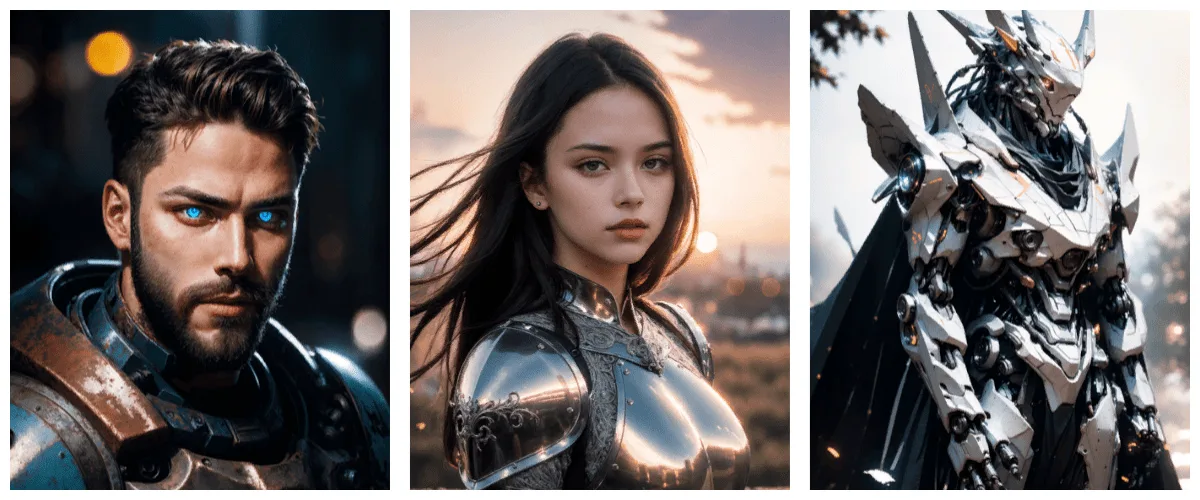
DreamShaper — a versatile model for fantasy-style graphics and illustrations.
-
Novel Inkpunk F222 — a mix based on F222 and Inkpunk Diffusion; F222 itself was created for NSFW content, but its female-focused dataset also made it suitable for neutral subjects.

These are far from all available models: Civitai has tens of thousands of others for animals, architecture, specific styles, and characters. Some enthusiasts share files via torrents, but Civitai and Hugging Face are more than enough to download any Stable Diffusion models.
How to choose a model
- Graphics card with 4–6 GB of VRAM: SD 1.5 or quantized versions of SDXL.
- 8–12 GB of VRAM: SDXL and its fine-tuned models (Juggernaut XL, RealVisXL, DreamShaper XL), as well as SD 3.5 Medium.
- 16 GB or more: SD 3.5 Large and Flux.
- Realistic photos: Juggernaut XL, RealVisXL.
- Anime and illustrations: Illustrious XL, NoobAI-XL, Pony Diffusion V6 XL.
If you are just getting started, choose the base SDXL or the versatile DreamShaper XL, then select a specialized model for your specific task. There are also “mixes” created from other models: authors usually specify which versions were merged, and this approach makes it possible to combine the strengths of each one.
How to install a model in Stable Diffusion
To install a Stable Diffusion model, you must first have Stable Diffusion itself installed (the neural network installation guide is available on this page). If you installed the neural network through Stability Matrix, open Model Browser, find a model on Civitai or Hugging Face, and click “Download”: the file will be placed in a shared model folder accessible to all installed interfaces (ComfyUI, Forge, AUTOMATIC1111). A manually downloaded file can be added by importing it into Checkpoint Manager. Adding models manually to a Stable Diffusion installation set up without Stability Matrix is also very straightforward:
-
Download any model (a file with the .ckpt or .safetensors extension).
-
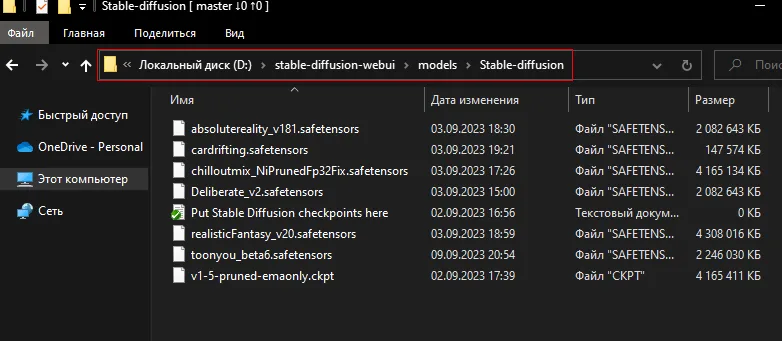
Place the downloaded file in the Stable Diffusion folder under “Models” on your computer. For example, on Windows: stable-diffusion-webui\models\Stable-diffusion .
-
Restart the neural network.
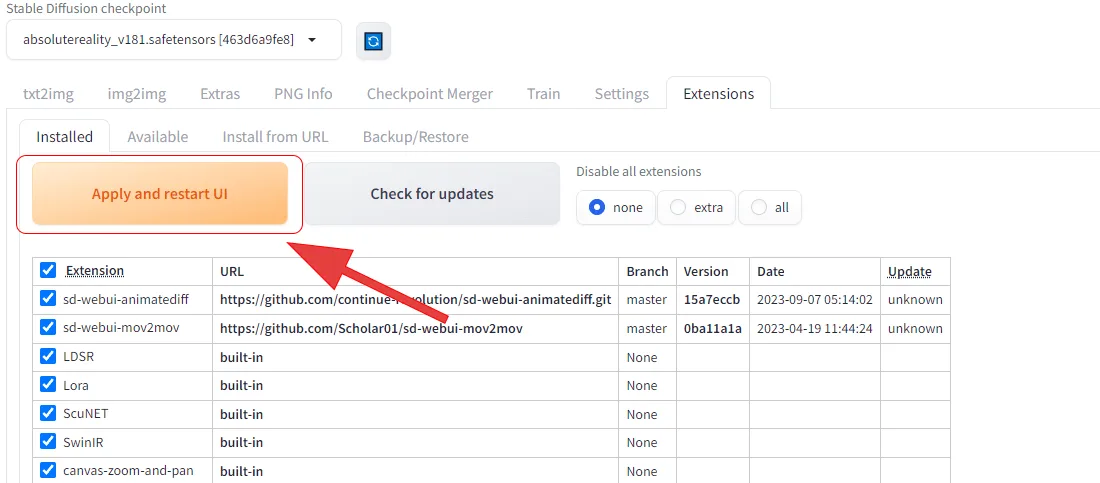 After restarting, you will be able to generate images using the new model. If you want to free up space, you can delete additional files from the
models\Stable-diffusion
folder. To do this, delete the
.ckpt
or
.safetensors
files from the model folder.
Important: the neural network requires at least one checkpoint model to function. In some cases, when the neural network does not work after installation, the problem is that no model has been added to it. The same issue will occur if all available files are deleted. Therefore, if the AI does not work after installation, be sure to check the “Models” folder.
How to work with models in Stable Diffusion
Stable Diffusion will not work without a model, so you will have to figure this out sooner or later. However, installation is extremely simple—all you need to do is choose a suitable model, download it, and place it in the correct folder on your computer. Textual inversions and LoRA allow you to get the most out of the available models by expanding your capabilities. In addition to using ready-made options, you can also create your own Stable Diffusion model. Training from scratch is difficult and time-consuming, so for beginners, the easiest option is to combine two models in the “Checkpoint Merger Tab” section. When working with ready-made options, also pay attention to the parameters recommended by the creator. As a rule, only the author and highly experienced users know the optimal settings, and without these recommendations, even the best Stable Diffusion model may produce mediocre results.

I study AI not as magic but as a tool. I love order in data and complex systems.