How to speed up image generation in Stable Diffusion

Table of Contents
Stable Diffusion on a home computer generates an image in anywhere from a few seconds to several minutes. The time depends on the graphics card, model, resolution, and number of steps. Below are ways to speed things up, listed from the most effective to minor adjustments. They work with Forge, AUTOMATIC1111, and ComfyUI, and you can also change the launch arguments through Stability Matrix.
What determines speed
The main workload falls on the graphics card (GPU), while its video memory (VRAM) capacity determines whether the entire model will fit. When there is not enough memory, some data is moved to RAM, slowing generation down several times over. So first check that the model is compatible with your graphics card, and only then adjust the other settings.
| What to do | Effect | Trade-off |
|---|---|---|
| Choose a fast model (SD 1.5, Lightning, Turbo) | Most noticeable | Style and quality change |
| Reduce the number of steps and the resolution | Noticeable | Fewer details |
| Enable attention optimization (xFormers or SDP) | Moderate | Almost none |
| Increase the batch size | Small | More VRAM required |
| Disable live previews | Small | None |
Choose a fast model
Speed depends heavily on the model itself. SD 1.5 generates images faster than SDXL, while SDXL is faster than SD 3.5 Large and Flux. If you need SDXL quality but do not want to wait, use accelerated versions:
- SDXL Lightning, SDXL Turbo, and LCM-LoRA generate an image in 2–8 steps instead of 20–30. Quality is slightly lower, but generation is several times faster. You can find these models and LoRA on Civitai and Hugging Face (see where to download models).
- FLUX.1 schnell is designed for 1–4 steps.
Accelerated models have their own recommended step counts and CFG settings. Check the model page for these recommendations; otherwise, the image may come out “overcooked.”
Reduce the number of steps and the resolution
- Steps. For standard models, 20–30 steps are usually enough. Beyond that, quality barely improves, while generation time increases proportionally.
- Resolution. Generate at the model’s native resolution: 512×512 for SD 1.5 and around 1024×1024 for SDXL, SD 3.5, and Flux. The larger the image, the longer generation takes and the more VRAM it requires. If you need a large image, first find a successful result at the standard resolution, then upscale only the selected version (Hires fix or upscaling).
- Hires fix. Do not enable it every time—use it only for the final version, as it performs a second generation at an increased resolution.
Enable attention optimization
In WebUI (AUTOMATIC1111 and Forge), you can speed up computation with launch arguments. The two main options are:
--xformers– the xFormers library, which has long been used as the primary way to speed up generation on NVIDIA graphics cards.--opt-sdp-attention– built-in PyTorch 2 optimization. It may be faster than xFormers, but uses more VRAM.
Which option is faster depends on the graphics card, so try both on your own computer. Do not enable them simultaneously.
How to set a launch argument in Stability Matrix: close the package, open its settings (Launch Arguments), enter the argument, and launch the package again. The launch message will contain a line like “Launching Web UI with arguments: --xformers”.
If WebUI launches through webui-user.bat: the file is located in the root stable-diffusion-webui folder. Right-click it and select “Edit.” 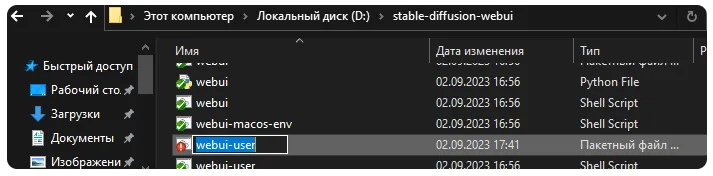 Add the following line to the file:
set COMMANDLINE_ARGS=--xformers
Do not add spaces around the equals sign, and make sure the S at the end of ARGS is present. Save the file and launch it by double-clicking. If you are enabling xFormers for the first time, the program will install the library automatically. After a successful launch, the following line will appear in the console: 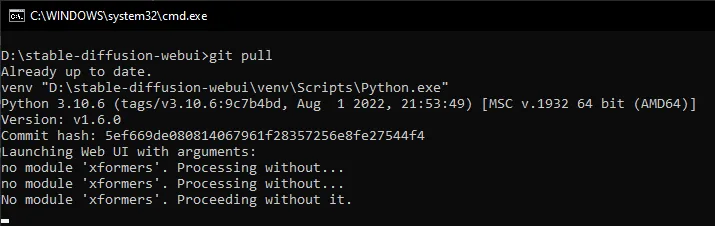
If you need reproducible results (the same image with the same seed), use --opt-sdp-no-mem-attention: it is deterministic, but slightly slower and also requires more VRAM. If enabling the argument causes errors, remove it.
Increase the batch size
WebUI has two parameters: Batch count (how many batches to generate consecutively) and Batch size (how many images to generate in one pass). Increasing the Batch size provides a small speedup per image as long as there is enough VRAM. The gain is not unlimited: it decreases with larger batches, while memory eventually runs out. Therefore, it is best to choose a value (usually 2–4) based on your graphics card. If you encounter an out-of-memory error (CUDA out of memory), reduce the batch size or add the --medvram argument. 
Disable live previews
Displaying intermediate images during generation also takes time. To disable it:
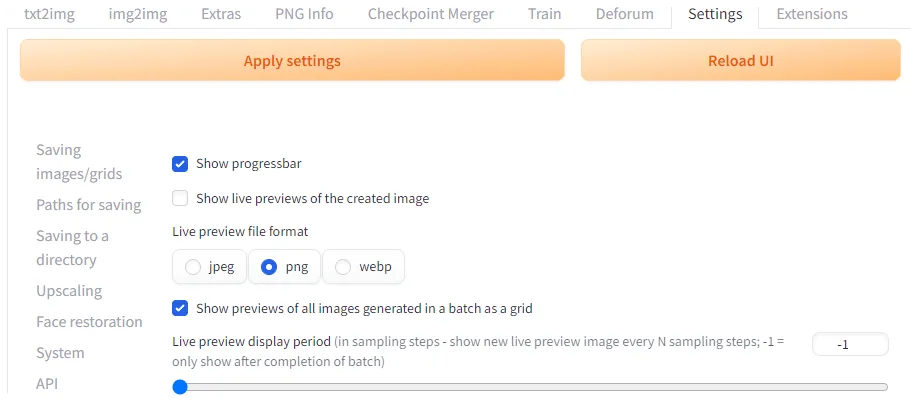
- go to the “Settings” tab and select the Live previews section;
- clear the “Show live previews of the created image” checkbox;
- set “Live preview display period” to -1: the image will be displayed only after generation is complete.
If your hardware is still not powerful enough
If your graphics card is outdated and none of these methods helps, you can move generation to a remote computer. Choose an AI GPU server rental: it will provide higher performance, while your local PC remains available for other tasks. Another option is to use web services from the AI image catalog, where no installation is required.
In brief
- Choose a model that matches your graphics card; if generation is too slow, use Lightning, Turbo, or LCM.
- Generate at 20–30 steps (2–8 for accelerated models) at the model’s native resolution.
- Enable
--xformersor--opt-sdp-attentionand check which is faster on your PC. - Choose the right batch size and disable live previews.
- If you are running out of VRAM, try the
--medvramand--lowvramarguments and check the answers to frequently asked questions.

I study AI not as magic but as a tool. I love order in data and complex systems.