Jan AI: how to use it and set up a personal AI offline
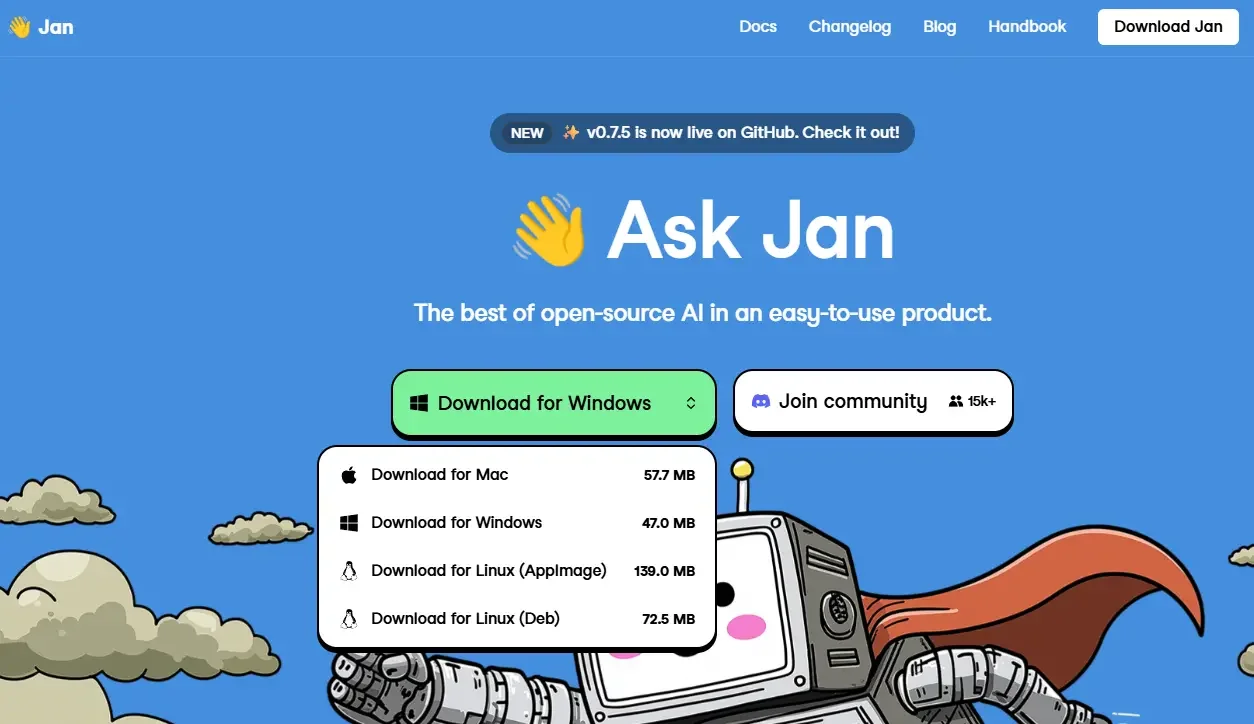
Table of Contents
Jan AI is a free, open-source application for Windows, macOS, and Linux that runs language models directly on your computer. Once a model has been downloaded, the chat works without an internet connection, and your data is not sent to external services. In addition to chat, Jan can run a local server with an OpenAI-compatible API, allowing you to connect your own scripts and other applications. This article explains what you need to run Jan, how to install it, download a model, and connect to the API.
What is Jan AI and why do you need it?
Jan is a desktop application, not a cloud service. Models run locally on the llama.cpp engine and, on Macs with Apple chips, also on MLX. You can use the application in three ways:
- Local chat. Download a model (Llama, Qwen, Mistral, Gemma, and other open models) and chat with it offline.
- Local API server. Jan responds to requests at an address compatible with the OpenAI API. If your code works with OpenAI, you only need to redirect it to the local address.
- Cloud model integration. If necessary, you can add external providers to Jan. In that case, requests to them are sent over the internet, so local privacy does not apply to those requests.
The local mode is suitable when you need privacy, offline operation, or no per-request fees. If you need the latest knowledge and the highest response quality, cloud models such as ChatGPT and Claude are still more capable.
| Advantages | Limitations |
|---|---|
| Data remains on your computer | A sufficiently powerful processor or graphics card and plenty of RAM are required |
| Works without the internet after the model is downloaded | The model has no access to the latest news and data |
| Free, with no per-request fees | Smaller models are less capable than cloud models |
| OpenAI-compatible API for your own applications | Models take up disk space |
What you need to run it
Requirements depend on the model size. The following are rough guidelines from the project description:
| Model size | RAM |
|---|---|
| Up to 3 billion parameters (3B) | 8 GB or more |
| 7B | 16 GB or more |
| 13B | 32 GB or more |
- Graphics card is not required, but it speeds up operation: Windows supports NVIDIA, AMD, and Intel Arc. On Macs with Apple Silicon, models use the integrated GPU.
- Operating system: Windows 10 or later, macOS 13.6 or later, Linux.
- Disk space: Leave enough room for the application and models: a single model takes from 2 GB to several dozen gigabytes.
Check the exact requirements on jan.ai and on the Jan AI catalog page: they may change with new releases.
How to install Jan
There is no need to install Python, clone a repository, or start the server from the command line. Jan is installed like a regular application.
- Download the installer for your system from the official jan.ai website or the project's releases page on GitHub.
- Run the installer and wait for the installation to finish.
- Open Jan. On the first launch, the application will prompt you to select and download a model.
Download the application only from the official website or official repository to avoid getting a fake copy.
How to download a model
Models are selected in the Hub section, which contains a catalog of open models with their sizes and descriptions. Downloading takes one click. The catalog is sourced from Hugging Face. If you already have a model in GGUF format, you can import it into the application manually.
How to choose a model:
- Size. Start with a small model (3B–8B): it is faster and sufficient for most tasks. Larger models provide more accurate answers but require more memory.
- Quantization. GGUF models are released in several compression variants: 4-bit models use less memory and run faster, while 8-bit models are more accurate. If you do not have enough memory for a model, choose a variant with fewer bits.
- Source. Download models from the Hub or from Hugging Face, choosing well-known authors.
How to use Jan
Once the model has been downloaded, open a new chat and select it. From there, everything works like in regular chatbots: enter a prompt and receive a response. Useful settings include:
- System message. Specify the role and response style, for example, “technical editor, answer in bullet points.”
- Generation parameters. Temperature and response length affect the style: a low temperature produces more precise answers, while a high temperature produces more varied ones.
- Context. The longer the conversation, the more memory the model needs. On a low-powered computer, reduce the chat history and the documents included in the prompt.
For offline operation, you only need to download the model once: the chat and local server will work without a network connection afterward.
Local API server
This is how Jan can replace the OpenAI API in your scripts and applications.
- Download a model and open “Settings” → “Local API Server” in Jan.
- Select the default model and start the server. The server will not start unless a local model is selected.
- The default server address is
http://127.0.0.1:1337/v1. You can change the port in the server settings if it is being used by another application. - Set an API key. Any string will work, but requests without the correct key in the
Authorizationheader will return a 401 error.
List available models:
curl http://127.0.0.1:1337/v1/models -H "Authorization: Bearer YOUR_API_KEY"Chat request (replace the model identifier with the one from the list above):
curl http://127.0.0.1:1337/v1/chat/completions \
  -H "Authorization: Bearer YOUR_API_KEY" \
  -H "Content-Type: application/json" \
  -d '{"model":"MODEL_IDENTIFIER","messages":[{"role":"user","content":"Hi, how are you?"}]}'
With the official openai library in Python, you only need to change the base URL and key:
from openai import OpenAI

client = OpenAI(base_url="http://127.0.0.1:1337/v1", api_key="YOUR_API_KEY")
resp = client.chat.completions.create(
    model="MODEL_IDENTIFIER",
    messages=[{"role": "user", "content": "Hello"}],
)
print(resp.choices[0].message.content)
Store the model name and key in environment variables rather than in the code.
Connecting to other applications
Thanks to its OpenAI-compatible API, Jan works with chat clients and tools that accept a custom API base URL: simply specify http://127.0.0.1:1337/v1, the key, and the model. A list of ready-made clients is available in the article about multi-chat clients. According to reviews, Jan also supports MCP servers, which give models access to files and external applications. Learn more in the article “What is an MCP server?”.
Security
- Local access. By default, the server is available only from your computer. If you specify the address
0.0.0.0, other devices on your network will also be able to connect to it. Enable this only when necessary and on a trusted network. - Key. Set your own API key and do not publish it in code or repositories.
- Cloud providers. Requests to connected external models are sent over the internet. It is better not to send private data to them.
- Models and application. Download them only from trusted sources.
Common problems
| Problem | What to do |
|---|---|
| Not enough memory; the application crashes while loading a model | Choose a smaller model or a variant with stronger quantization |
| The server does not start | Check that a local model is selected and port 1337 is available; you can change the port in the settings |
| 401 error | The Authorization header does not contain a key, or the key does not match the one in the settings |
| Responses are slow | Use a smaller model, close resource-intensive applications, and enable GPU acceleration |
| The application does not detect the graphics card | Update the graphics card drivers |
Conclusion
Jan is suitable for anyone who wants to run AI locally—for confidential documents, offline operation, and integration with their own scripts. Start with a small model, check whether its quality and speed are sufficient, and only then move on to larger models. The current conditions, versions, and feature list are available on the Jan AI catalog page.

I study AI not as magic but as a tool. I love order in data and complex systems.