AI agents in n8n: from your first chat to a Telegram bot
Table of Contents
A typical n8n workflow executes steps in a predefined order: receive an email — write it to a table — send a notification. An AI agent works differently: you describe the task in natural language, and the language model decides which tools to call, in what order, and when to stop. In this article, we’ll look at how an agent works in n8n and build two agents: the simplest one, with a calculator and Wikipedia, and a Telegram bot with memory.
If n8n is not installed yet, start with the article what n8n is and how to install it on your server. The agent requires a language model API key. The article Get started with n8n explains where to get one and how to connect OpenRouter or DeepSeek.
This article was verified in November 2026 on n8n 2.46.
Two types of agents in n8n
In n8n 2.x, the word “agent” refers to two different things:
| AI Agent node | Agents (Agent Builder) | |
|---|---|---|
| What it is | A node inside a regular workflow | A separate project object alongside workflows (the Agents tab) |
| How it starts | Through any workflow trigger: chat, Telegram, webhook, schedule | From chat, on a schedule, through channels (Slack, Telegram, Linear, Microsoft Teams), and from workflows using the Message an Agent node |
| Status | Stable and long-established | Preview (since n8n 2.32.3); behavior may change |
| When to choose it | The agent is part of a process, with regular steps before and after it | You need a standalone assistant with instructions, skills, and conversation history |
This article focuses on the AI Agent node: it is stable, works on any 2.x version, and gives you full control over what happens before and after the agent. Agents are covered at the end of the article.
How the AI Agent node works
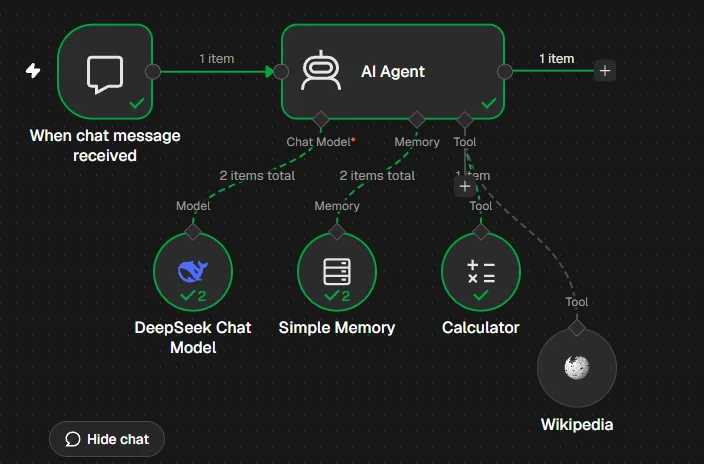
The AI Agent node is the “root” node. Supporting nodes of three types are connected to it from below.
- Chat Model — the language model, or the agent’s “brain”: OpenRouter Chat Model, Anthropic Chat Model, OpenAI Chat Model, Ollama Chat Model, and others. Required.
- Memory — memory of previous messages. Without it, the agent responds to every message from scratch. Simple Memory is a good starting point; it stores the conversation history directly in n8n.
- Tool — tools the agent can call: a calculator, Wikipedia, an HTTP request, Google Sheets, another n8n workflow, an MCP server, and hundreds of integrations.
The node’s main settings are:
- Prompt (User Message) — the user’s message. If the agent is started from the n8n chat, it is inserted automatically; with another trigger, define it using an expression.
- System Message (in the Options section) — instructions for the agent: who it is, what it does, what tone it should use, and what it must not do. This affects the agent’s behavior more than the model selection.
- Max Iterations — the number of “think — call a tool” steps the agent is allowed to perform for a single request (10 by default). This prevents loops and unnecessary costs.
The agent works in a loop: the model reads the request and tool descriptions, decides whether a tool is needed, calls it, receives the result, and decides again until the answer is ready or the step limit is reached. Therefore, the description of each tool and the system instructions are the most important things to configure.
Example 1: an agent with a calculator and Wikipedia
The clearest way to understand an agent is to give it two tools and see how it decides which one to call. An API key and five minutes are all you need.
Step 1. Chat Trigger
Create a new workflow (Create Workflow) and add the When chat message received trigger (Chat Trigger). It provides a chat window directly in the editor.
Step 2. AI Agent node
Click + to the right of the trigger and add AI Agent. Leave the Prompt field unchanged — the message will come from the chat. In Options → System Message, enter:
You are an assistant and reference guide. Look up facts on Wikipedia and perform calculations only with the calculator.
Reply in English, briefly, and include the final number.
Step 3. Model
Under the agent node, click + next to the Chat Model input and select OpenRouter Chat Model (DeepSeek is used in this example). Create credentials with your key and select a model from the list. Choose a model that supports tool calling: free models do not always support it.
Step 4. Memory
Add Simple Memory to the Memory input. The default settings are suitable: with the chat trigger, memory automatically separates conversations by session.
Step 5. Tools
Add two tools to the Tool input: Calculator and Wikipedia. No configuration is required.
Step 6. Testing
Click Open chat at the bottom of the editor and ask:
What is the height of Mount Everest in feet?The agent will find the mountain’s height in meters on Wikipedia, convert it to feet using the calculator, and respond. The log panel on the right shows every step: which tool the agent selected, what it sent to the tool, and what it received. Ask a follow-up question (“What about yards?”) — thanks to memory, the agent will understand what you mean.
Try disabling the calculator and asking the same question: the model will calculate “in its head” and may make an arithmetic mistake. This demonstrates why agents need tools.
Example 2: an AI agent in Telegram
Now let’s use the same agent in Telegram: the bot responds to messages and keeps a separate conversation history for each user.
What you need: n8n with a domain and HTTPS. Telegram delivers messages through a webhook and does not work with an address such as localhost or http://IP. If n8n is accessible only through an SSH tunnel, first configure a domain, Nginx, and HTTPS.
Step 1. Create a bot
In Telegram, open @BotFather, send the /newbot command, and set the bot’s name and username (it must end with bot). BotFather will send you a token in the format 123456789:AA... — this is the bot’s access key, so do not share it with anyone.
Step 2. Telegram Trigger
In a new workflow, add the Telegram Trigger with the On message event. Create Telegram credentials and paste in the bot token. Click Execute step (test run) and send the bot any message — the message data will appear in the node. It includes message.from.id, your Telegram ID, which you will need in step 6.
Step 3. Agent
Add AI Agent. The message does not come from the n8n chat automatically, so under Source for Prompt (User Message) select Define below, then enter this expression in the Prompt (User Message) field:
{{ $json.message.text }}In System Message, describe the bot’s role, for example: “You are a Telegram assistant. Reply in English, briefly, without Markdown formatting.” Connect the same Chat Model, and add any tools — Calculator and Wikipedia from the first example are a good starting point.
Step 4. Memory for each user
Add Simple Memory. To prevent the bot from mixing up users, select Define below in the session key setting and enter the chat ID in the Key field:
{{ $('Telegram Trigger').item.json.message.chat.id }}Each chat will now have its own history.
Step 5. Send the response
After the agent, add a Telegram node with the Send Text Message action (Send a text message):
- Chat ID:
{{ $('Telegram Trigger').item.json.message.chat.id }} - Text:
{{ $json.output }}— this is the field containing the agent’s response. - In Additional Fields, disable Append n8n Attribution; otherwise, each response will include the phrase “This message was sent automatically with n8n”.
Step 6. Restrict access
The bot is available to anyone who finds it, and every response consumes your balance with the model provider. If the bot is private, open the Options section in Telegram Trigger and enter your ID from step 2 in Restrict to User IDs (enter multiple IDs separated by commas).
Step 7. Publish
Click Publish. In n8n 2.x, saving and publishing are separate: Save only saves the draft, while the active workflow version changes after Publish. Send the bot a message — the response should arrive within a few seconds.
What you should know:
- A bot can have only one webhook. A test run in the editor temporarily intercepts messages from the published version — after debugging, publish the workflow again.
- Telegram accepts messages up to 4,096 characters long. If the agent produces long responses, limit them in the system instructions.
- A sticker or photo does not contain the
message.textfield, so the agent will receive an empty request. To make the bot process text messages only, add a Filter node after the trigger with the condition “message.textexists”. - Simple Memory stores the history in the n8n process memory and loses it after a restart. For persistent history, use Postgres Chat Memory or Redis Chat Memory.
No-workflow option: a Telegram channel for an Agent
You can create the same bot without nodes. Create an Agent (Build an agent), configure the model and instructions, and paste the bot token from @BotFather in the Channels section. n8n will handle messages, responses, and memory automatically.
- An agent with a channel is suitable when you need a regular conversational bot and want to launch it within a couple of minutes.
- The workflow from this example is needed when you require control: allowing only specific users, logging conversations to a table, processing voice messages and files, or responding differently to different commands. Another reason to choose a workflow is that Agent channels are still in Preview and may change between versions.
In both cases, Telegram sends messages to your n8n address, so you need a public HTTPS URL in the N8N_WEBHOOK_URL variable (WEBHOOK_URL on versions before 2.30). If the bot does not respond, check this variable first.
What else n8n agents can do
- MCP servers. The MCP Client Tool node connects an external MCP server to the agent, making all its tools immediately available. The reverse works through the MCP Server Trigger, which turns n8n workflows into tools for Claude Desktop, Cursor, and other MCP clients.
- Multiple agents. An agent can delegate part of its work to other agents: connect a Message an Agent Tool node to the Tool input to call a published Agent, or use another AI Agent node as a tool. This is how you build setups where a primary agent distributes tasks among specialized agents.
- Human approval for actions. For potentially dangerous tools — sending emails or changing and deleting data — you can enable verification. The agent pauses and sends an approval request to Slack, Telegram, Outlook, or the n8n chat. The tool runs only after approval.
- Structured output. The Require Specific Output Format option and an output parser force the agent to return JSON with predefined fields — useful when other nodes process the response afterward.
- Quality evaluation (Evaluations). A set of test questions with reference answers that you can use to test the agent after each instruction change or model switch.
Common errors and how to avoid them
- The agent does not call a tool or calls the wrong one. Check that the model supports tool calling, and explicitly state in the system instructions which tool should be used for which task.
- The agent fabricates facts. Instruct it to use data only from tools and answer “I don’t know” when the data is unavailable.
- Costs are increasing. Each iteration is a separate request to the model. Limit Max Iterations, shorten the memory history (Context Window Length in Simple Memory), and avoid passing unnecessary data to the agent.
- “No prompt specified” error. The agent was not started from the n8n chat, and the Prompt field is empty — define it with an expression, as in the Telegram example.
- The bot stopped responding after debugging. The test run intercepted the webhook — publish the workflow again.
Frequently asked questions
Do you need to know how to code to create an agent in n8n?
No. You build the agent by dragging and connecting nodes, while expressions such as {{ $json.message.text }} can be dragged from the input data panel. Code is only required for custom data processing in the Code node.
Can you create an agent without a paid API?
Yes: by using free OpenRouter models (with a request limit) or your own model in Ollama. Your own model requires a server with a GPU — see the article what is n8n for more details.
How is an n8n agent different from ChatGPT?
ChatGPT primarily responds with text in a chat window. An n8n agent is integrated into workflows: it can call APIs, write to spreadsheets and CRMs, send messages, and work wherever it is convenient for you — in Telegram, on a website, or on a schedule.
If n8n is not suitable for some reason, take a look at n8n alternatives, including builders designed specifically for AI agents.

I study AI not as magic but as a tool. I love order in data and complex systems.