Table of Contents
Clipdrop AI is a universal assistant for photo editing and graphic design. On this page, you’ll learn more about what Clipdrop AI can do, how to use artificial intelligence for image editing, what limits and restrictions apply, how much Clipdrop costs, and find information about several alternatives to the tool.
What Is Clipdrop?
Clipdrop is sometimes called a Photoshop alternative, but that isn’t quite accurate. Clipdrop is an online set of AI tools for photo editing and image generation. It works in a browser, so there’s nothing to install. The service was created by InitML in 2020, acquired by Stability AI in 2023, and has been owned by Jasper since 2024.
Clipdrop currently offers 9 tools:
- Text to image — generating images from your description.
- Uncrop — expanding the visible area of an image: the AI generates the missing content around the edges. This function is sometimes referred to in Russian as “outpainting.”
- Cleanup — removing unwanted objects from an image, including people, furniture, and any other items you select, as well as imperfections.
- Text remover — removing text, including text in Russian and other languages.
- Remove background — removing the background.
- Replace background — replacing the background with a new one based on a text description.
- Relight — changing the lighting in an existing photo, such as simulating backlighting, red light, and more.
- Image upscaler — increasing image resolution without quality loss: 2× for free and up to 16× with Pro.
- Universal resizer — adjusting image dimensions to fit social media formats.
Tools that were previously available—Stable Doodle for creating images from sketches, Reimagine for cloning images, and Sky Replacer for replacing the sky—have been removed from Clipdrop.
At the same time, Clipdrop is not a Photoshop alternative when it comes to working with layers, masks, and so on. Therefore, Clipdrop AI should be viewed as an automated assistant that can remove unwanted objects, generate nonexistent elements, adjust lighting, replace backgrounds, and more. Clipdrop is not suitable for creating images manually with detailed editing and layer-based workflows.
Limits and Restrictions
Clipdrop is a freemium AI service: most features are available at no cost, but with volume limitations. Text-to-image generation, Uncrop, and background replacement are available for free, while the other tools have daily limits:
- background removal, 2× upscaling, Cleanup, and Relight — 20 operations per day;
- text removal — 50 operations per day.
In the free version, tasks are placed in a shared queue, and the result is not available in high resolution. With the Pro plan, each feature is available up to 1,000 times per day, results can be downloaded in high resolution, upscaling works at up to 16×, and the “Skip Queue” feature means you don’t have to wait in line.
Pricing
| Plan | Price | What it includes |
|---|---|---|
| Free | free | text-to-image generation, Uncrop, and background replacement; background removal, 2× upscaling, Cleanup, and Relight — 20 operations per day; text removal — 50 per day |
| Pro | $15 per month | priority queue, high-resolution results, upscaling up to 16×, up to 1,000 operations per feature per day |
| API | pay-as-you-go | integrating Clipdrop models into your own product |
For high-volume tasks, if the paid plan’s daily limits are not enough, you can connect Clipdrop models via the API. In this case, pricing is based on the volume of your tasks; current prices are published on the Clipdrop API page.
How to Use the AI
Let’s look at how to use Clipdrop AI using the online version as an example. The screenshots below were taken in 2023; the interface may have changed since then, but the workflow remains the same. First, you need to create an account—it’s free. Next, open the “Tools” section and select the tool you need: 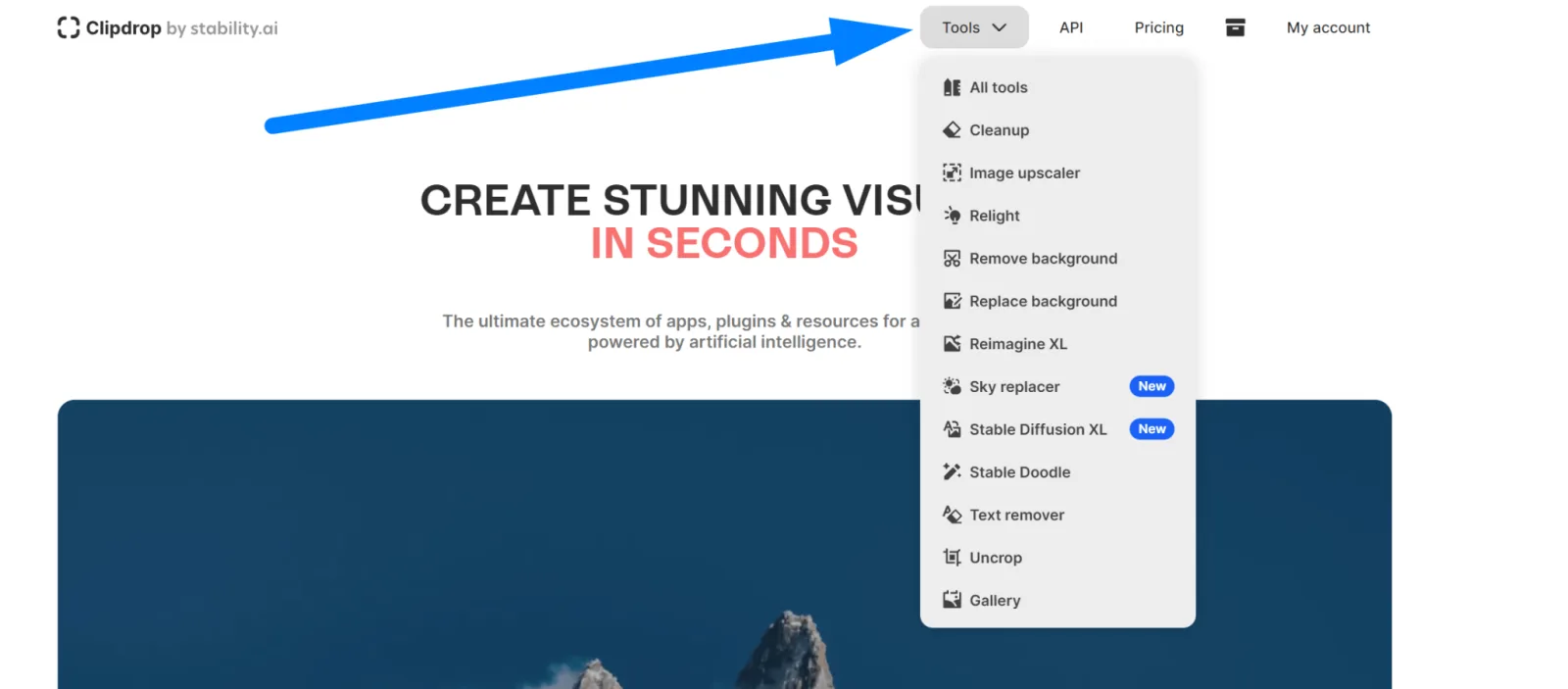
Creating Images from Text
To create an image, use the Text to image tool. To generate a picture, you need to describe it—in other words, create a prompt. You can use a ready-made prompt from our collection, or create your own with the help of a prompt generator. For more detailed configuration, expand the settings panel: 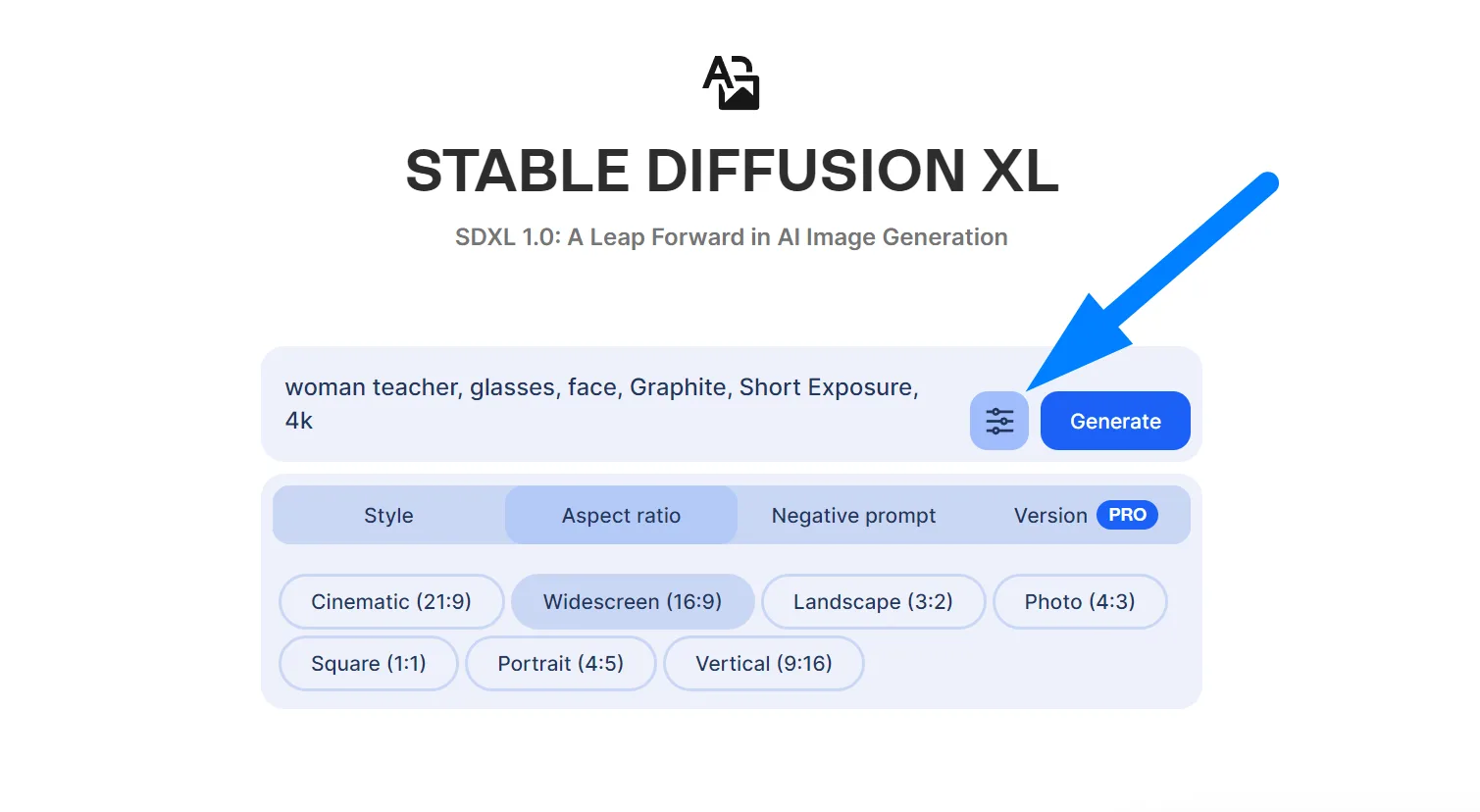 Once you’ve set all the parameters and written the prompt, click the “Generate” button. In a free account, you’ll need to wait—the screen will show how many tasks are ahead of yours:
 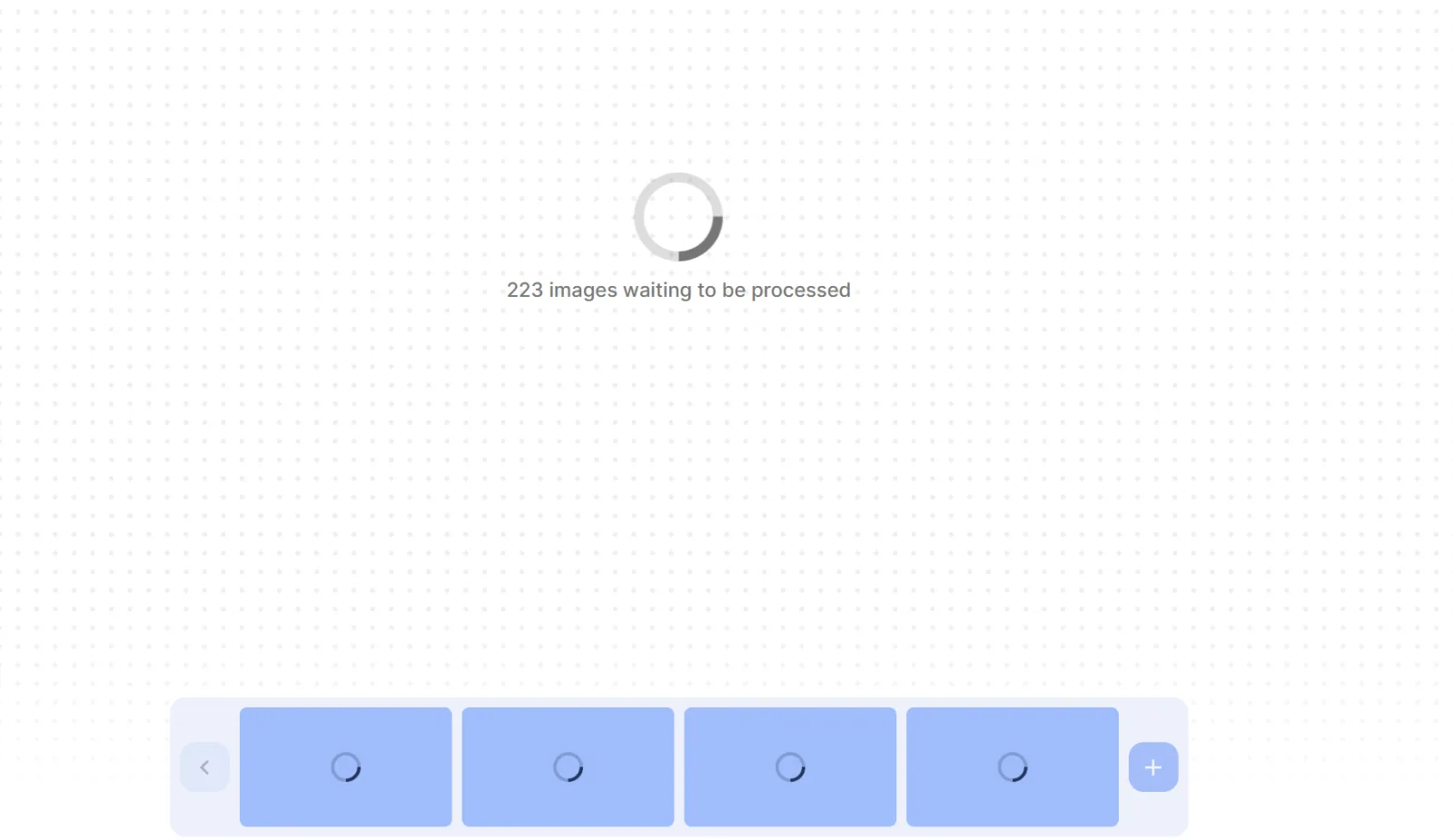 Queue waiting applies to all tools in the free version. The result is a finished image generated from your description. In our example:
Prompt: woman teacher, glasses, face, Graphite, Short Exposure, 4k
The resulting image: 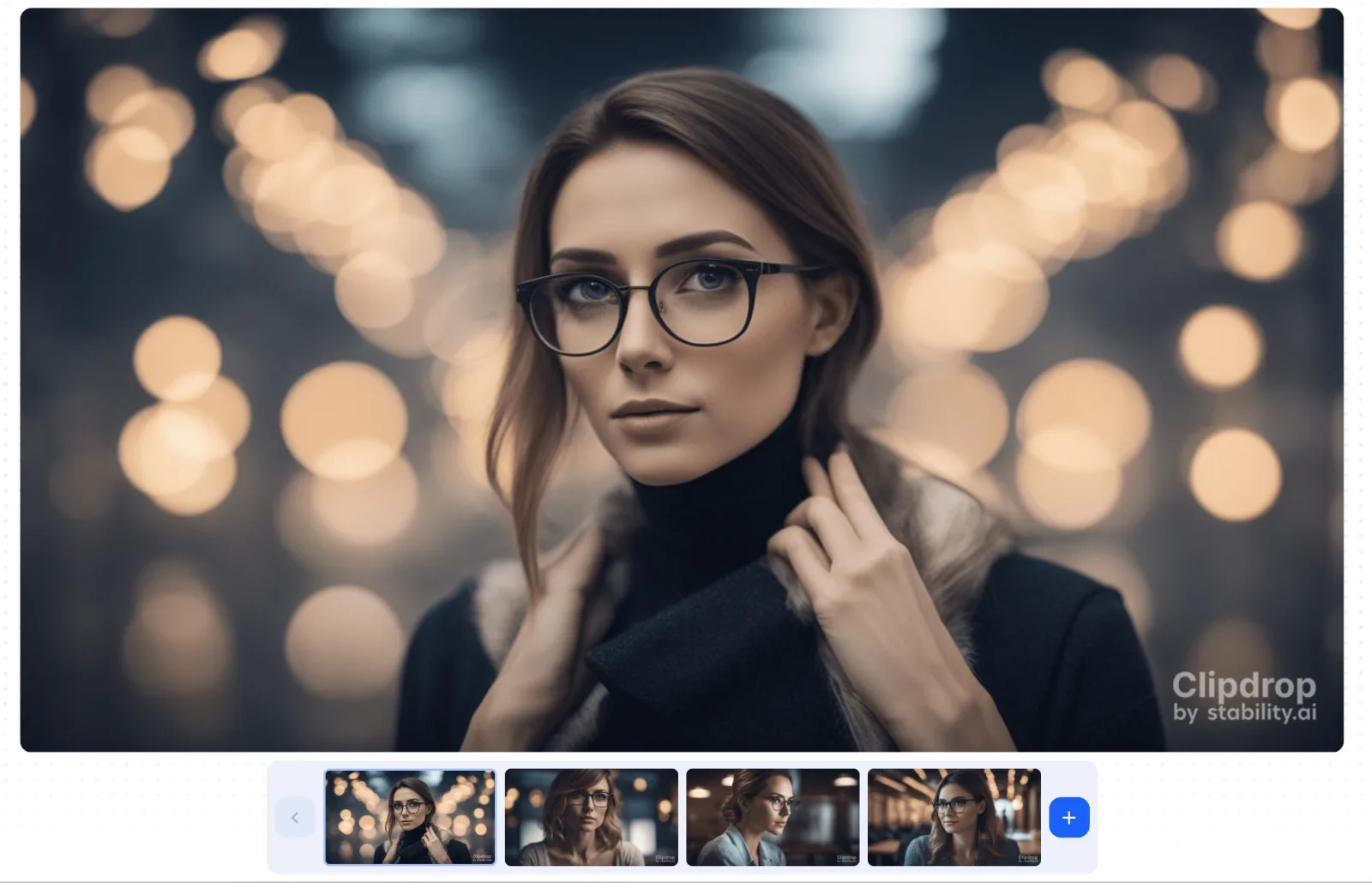
Tip: if you don’t want to wait in the queue but still want to create images for free, install Stable Diffusion on your computer. You can find installation instructions on this page.
Uncrop or Outpainting
To expand the visible area of an image—in other words, to generate additional content around its edges—use the Uncrop tool. Upload the image you want to expand, then drag the edges that the AI should extend. For this example, we’ll use the image from the previous tool: 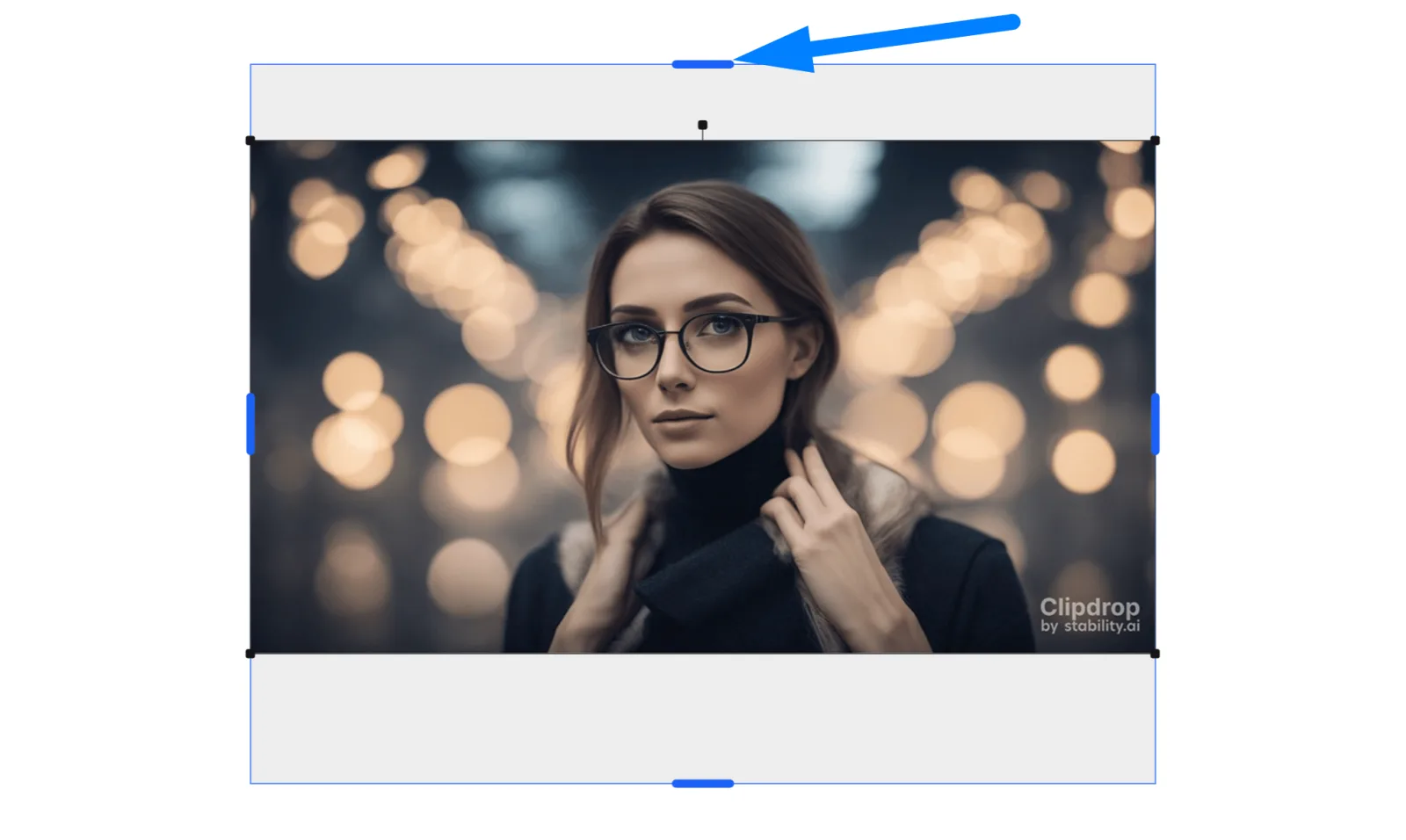 As with the image generator, Uncrop requires a short wait in the free version. The result will look approximately like this: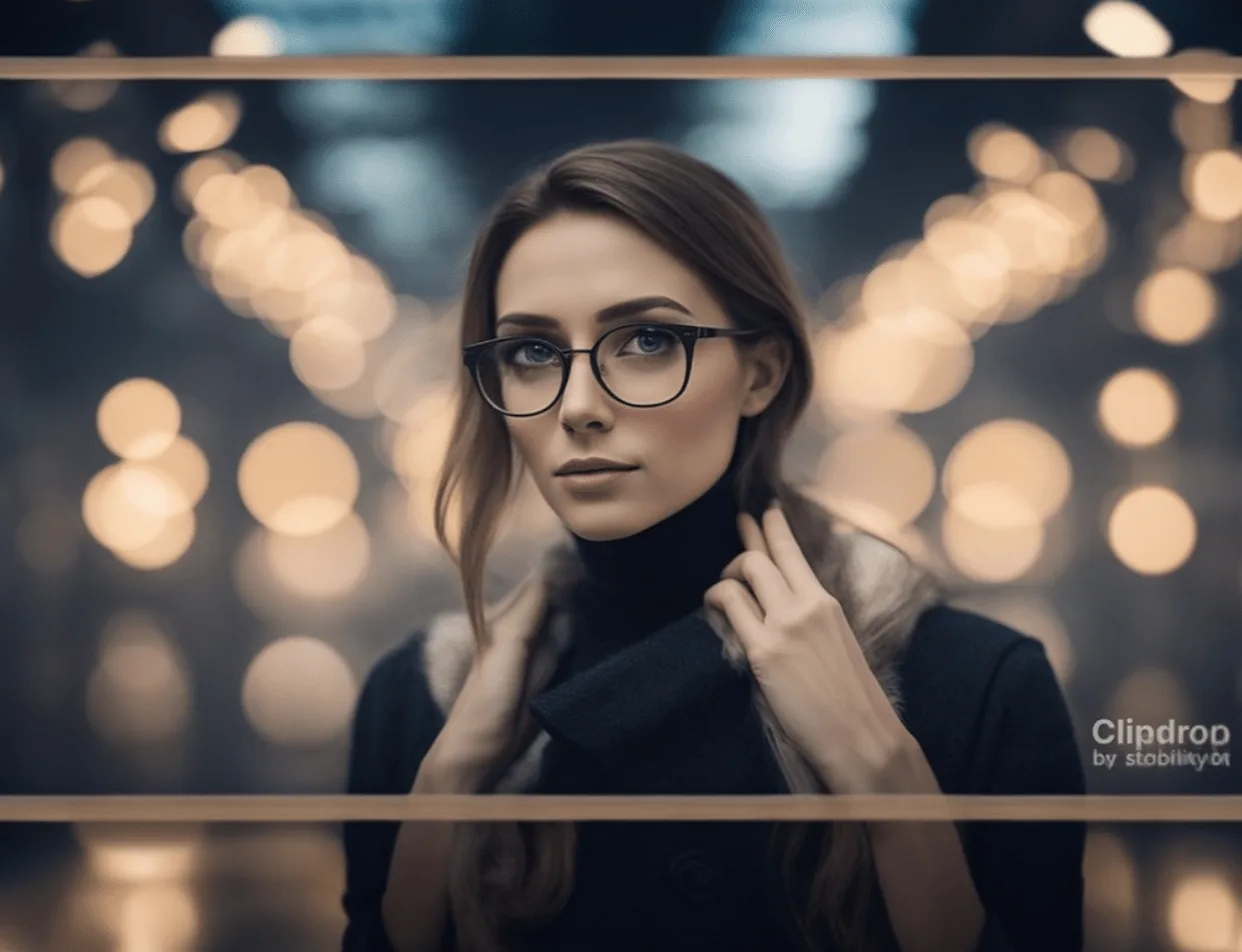
Removing Unwanted Objects from an Image
Artificial intelligence allows you to remove any object from an image. For this example, we’ll use a more complex image:  To remove the coffee cup from this image, upload the original image to the Cleanup tool. Then use the mouse to paint over the element that should be removed:
 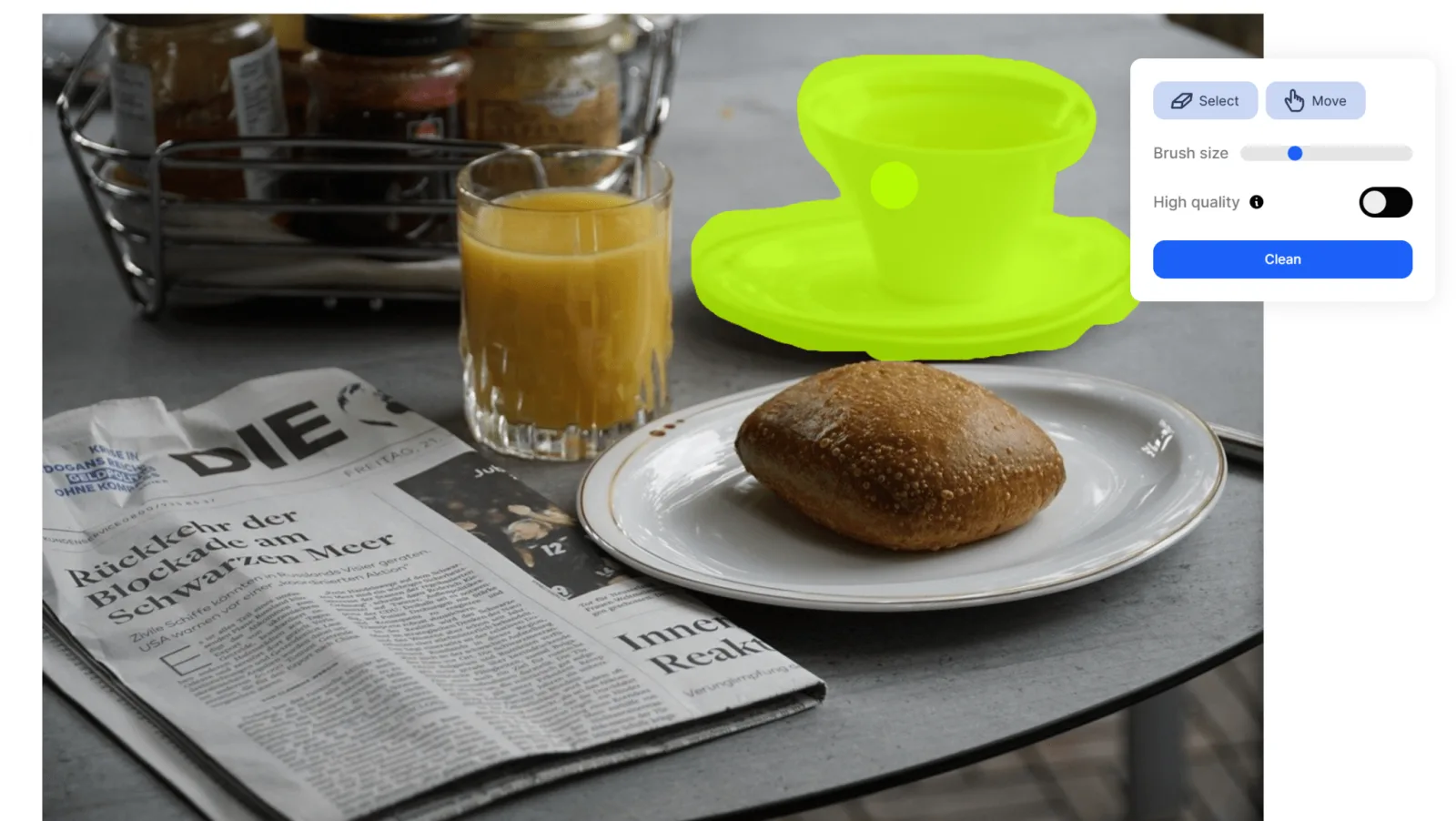 The free version includes 20 operations per day; with Pro, the result can be downloaded in high resolution. An example of the free version in action: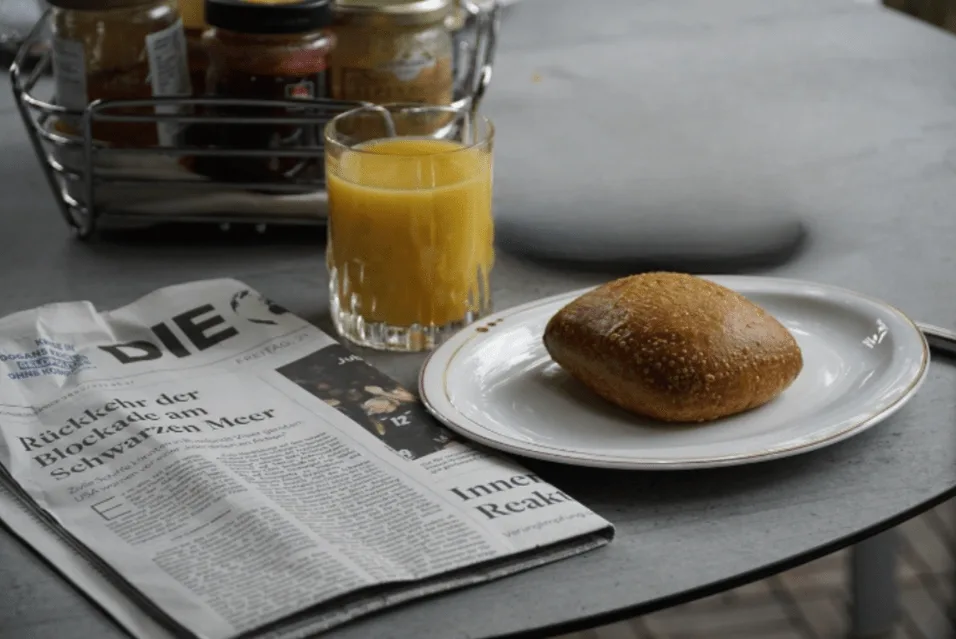
Removing Text
To remove text from an image, use the Text remover tool. Start by uploading the original image. For this example, we’ll use a challenging case—a mixture of Latin and Cyrillic characters, shown on a cover from our website: 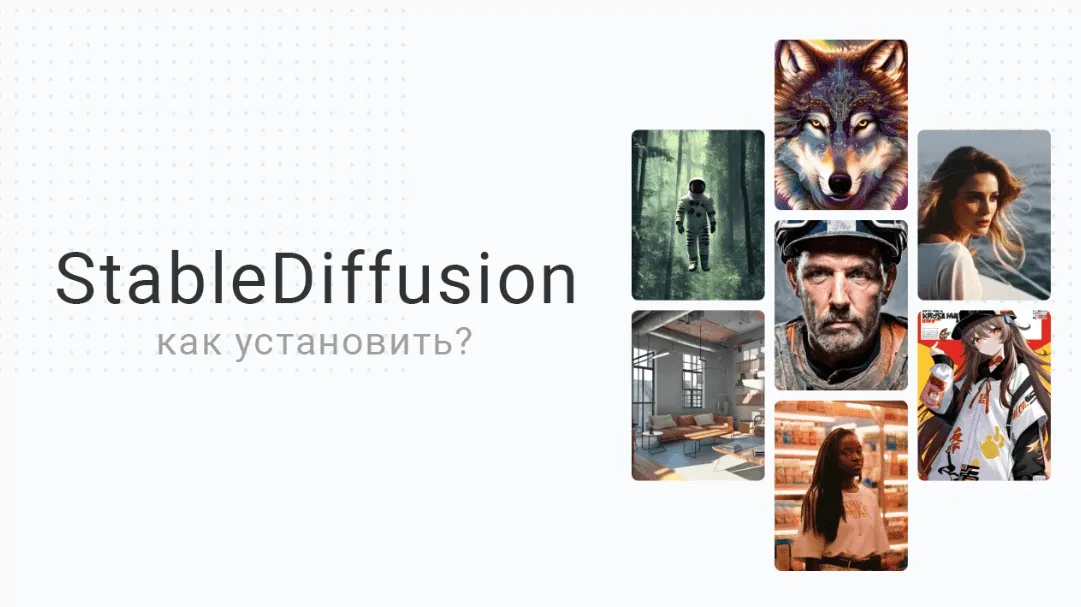 Clipdrop handled both the English and Russian text well while even preserving the background. The result:
Removing or Replacing the Background
You can completely remove the background using the Remove background tool. For this example, we’ll use a generated image: 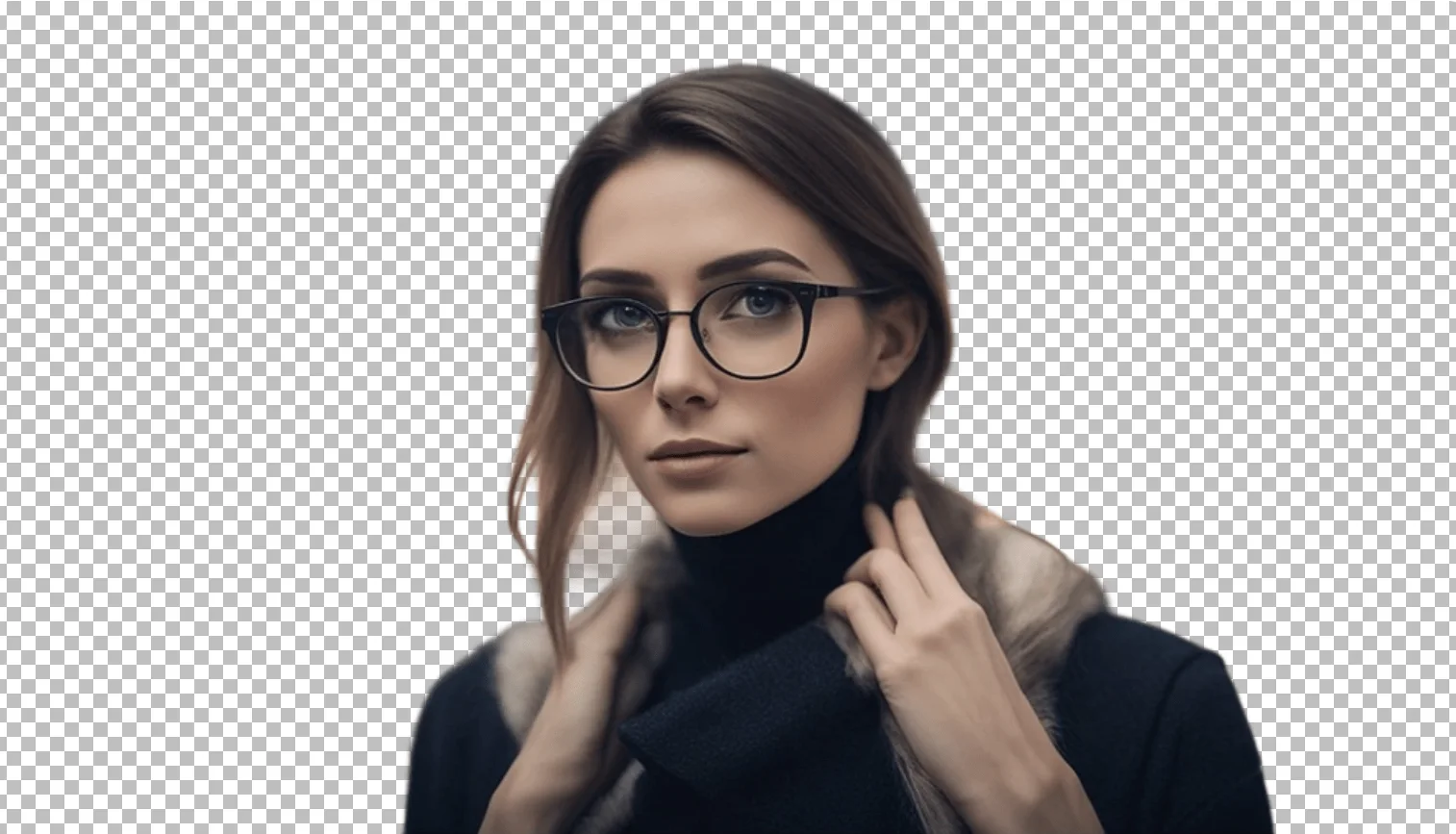 You can download the result in .PNG format, with a transparent background. Similarly, you can replace the background immediately: add the original image to the Replace background tool and describe the new background. Background replacement is also available for free; with Pro, the result can be downloaded in high resolution.
Changing the Lighting in an Image
The Relight tool lets you change the lighting in an existing image. For example: 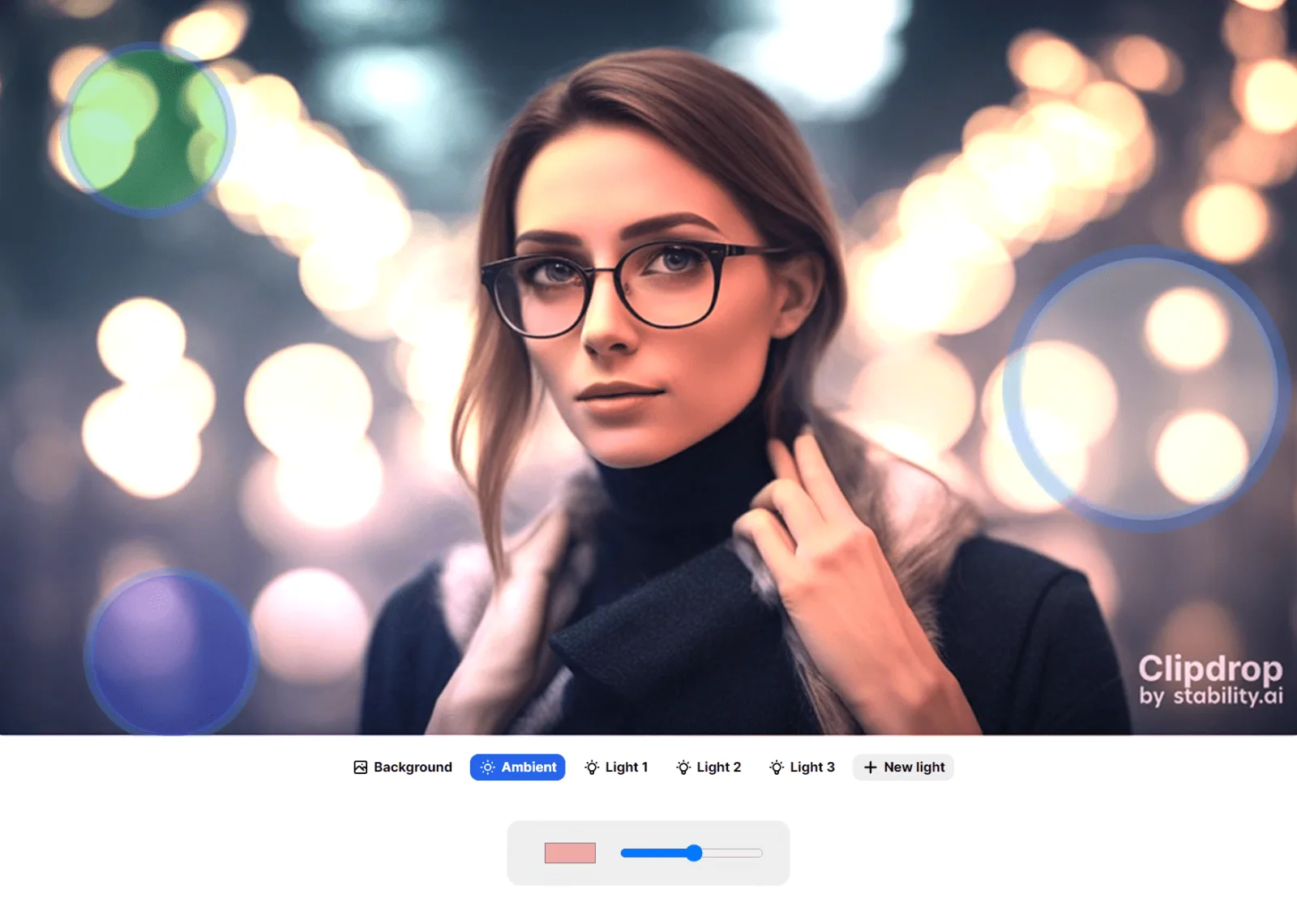 With fine-grained controls, you can manually adjust the lighting—including the position and color of the light source and other parameters.
Increasing Image Resolution (Upscaling)
If you try to increase the resolution of a raster image (.jpg, .png, and other formats) in Photoshop, you’ll lose quality. The Image upscaler tool lets you increase resolution without quality loss—by 2× in the free version and up to 16× in the paid version: 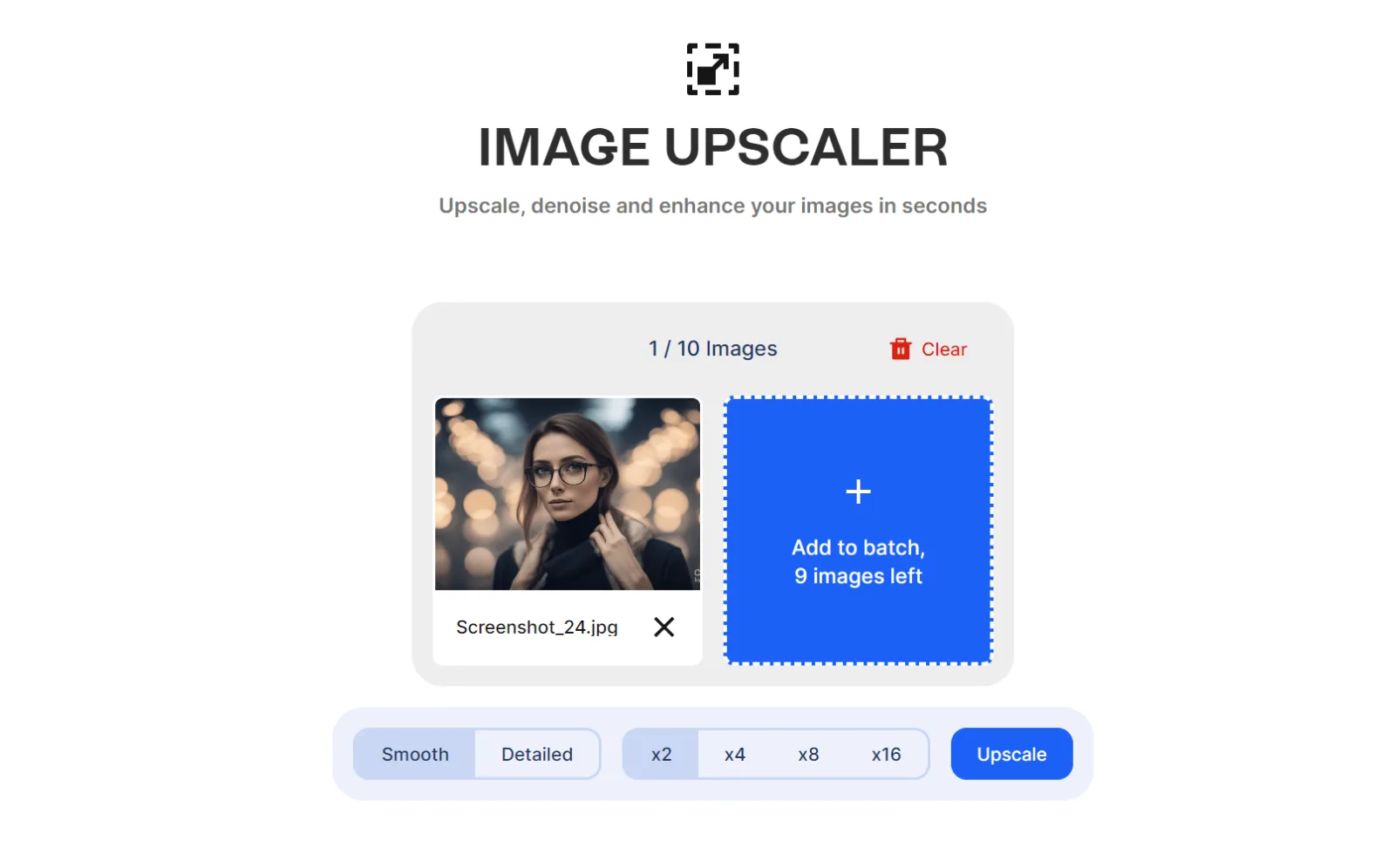
Clipdrop Alternatives
- Photoshop — Adobe’s paid editor with built-in AI features, including image generation, automatic background removal, and more. A trial period is available.
- Upscale — a tool for upscaling images. A small number of images can be processed for free; after that, you pay per image. The tool is intended solely for upscaling and has no other features.
- Fotor — an affordable Clipdrop alternative. It supports image generation, background removal, and several other features. Some functionality is available for free.
When Should You Use Clipdrop?
Clipdrop AI should definitely be part of everyone’s toolkit. Its advanced artificial intelligence lets you remove backgrounds, upscale images, extend pictures beyond their edges, or remove unwanted objects. And all of this can be done without specialized knowledge—literally in a few mouse clicks. Clipdrop can partly be considered a professional tool, since it allows you to handle even complex tasks. However, when it comes to photo editing, Clipdrop still falls short of Photoshop’s functionality. Clipdrop is an excellent tool for automating workflows and saving time, but for precise edits, manual image processing and other tools may still be required.
I study AI not as magic but as a tool. I love order in data and complex systems.